
Contents
- A. Printing Cost
- B. Mobile Printing in the Library
- C. How to Print to Kyocera MFP in Library
- D. Photocopier Location
- Insert Octopus Card to Start
- Step 1 – Click Home Button > [Copy]
- Step 2 – Select the Functions
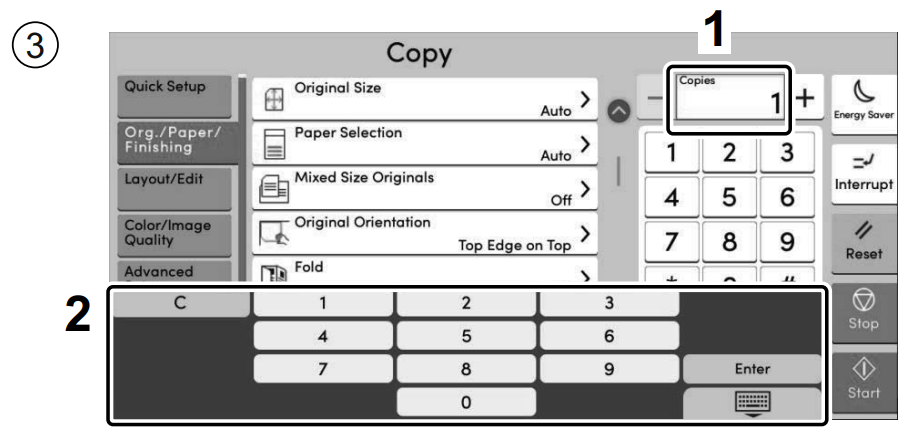
- Step 3 – Enter the Copy Quantity
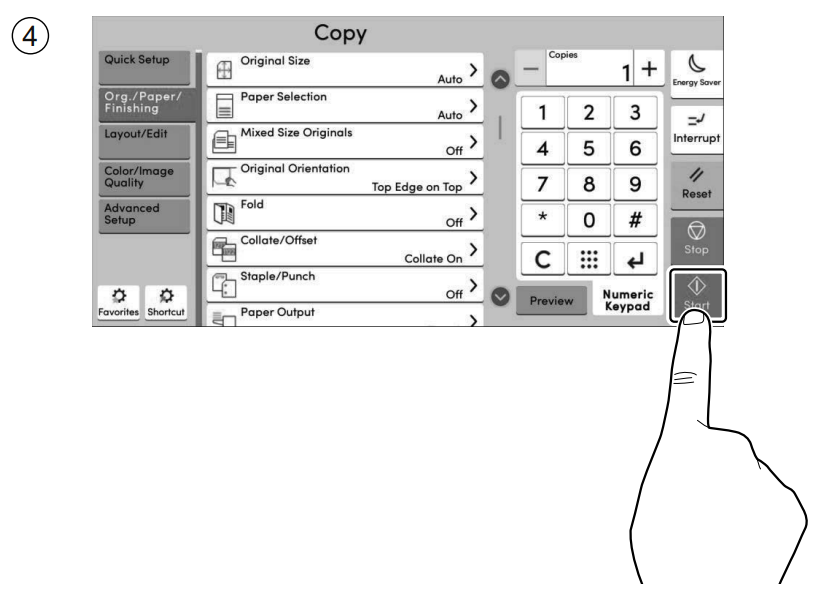
- Step 4 – Press the [Start] Key
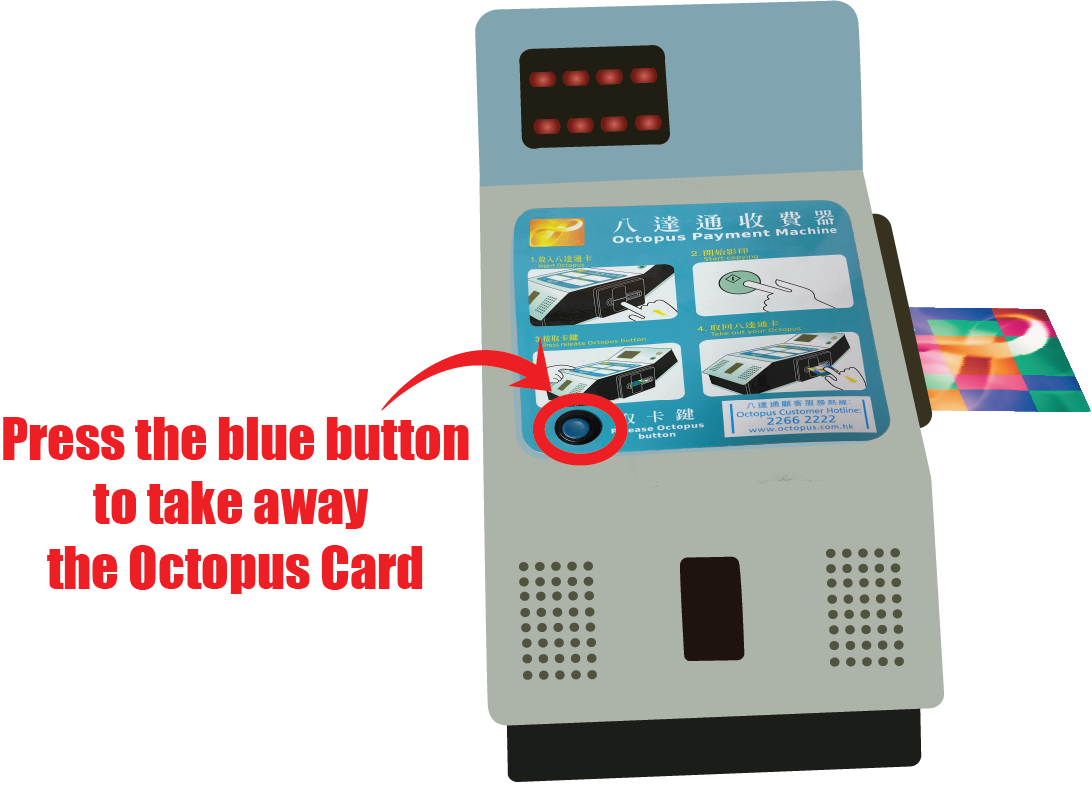
- Reminder: Please Take Back Your Octopus Card
- Insert Octopus Card to Start
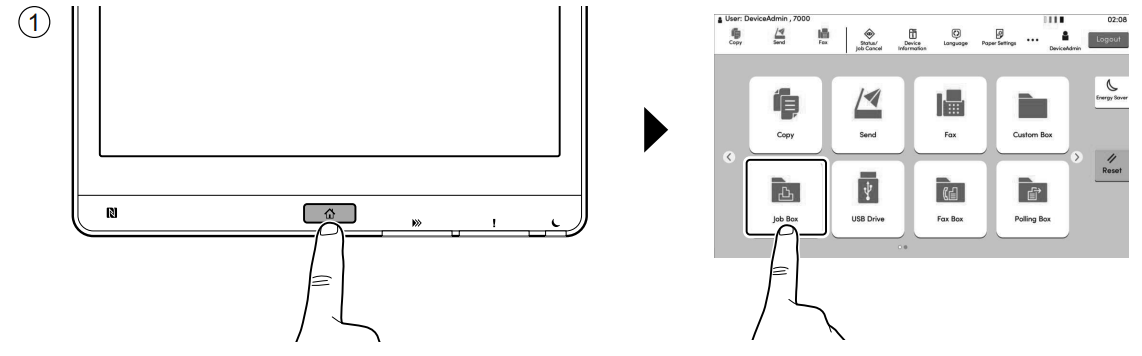
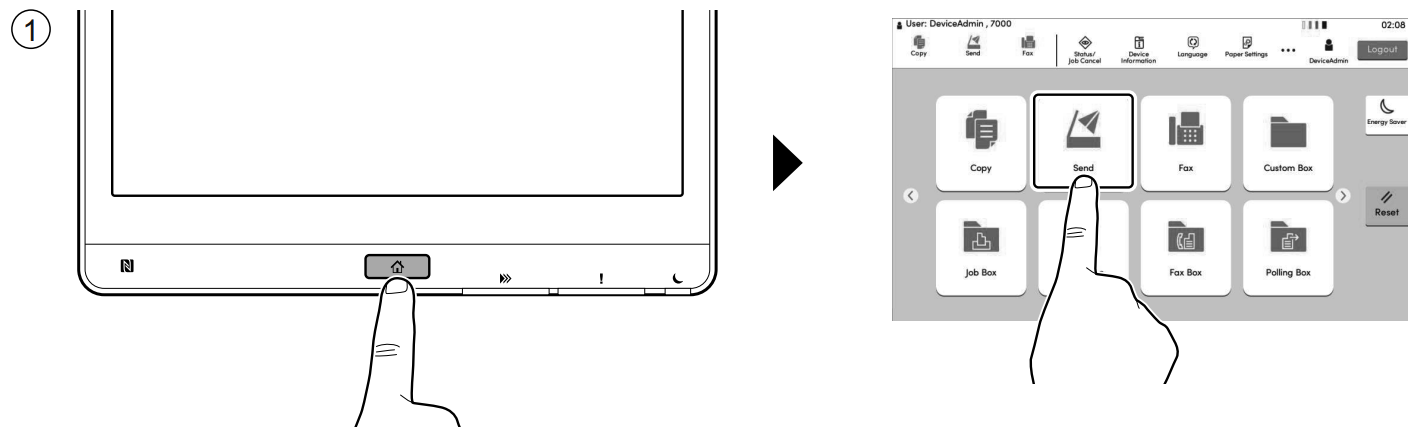
- Step 1 – Click Home Button > [Job Box]
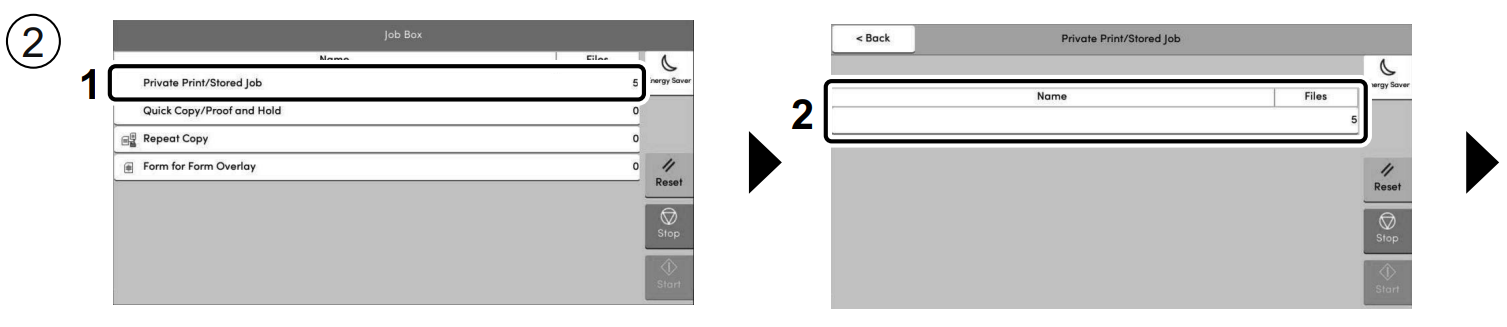
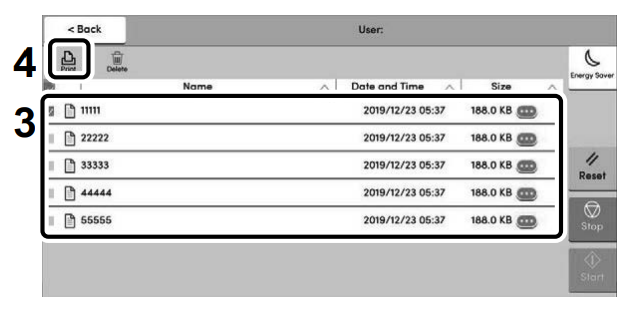
- Step 2 – Select [Private Print / Stored Job] > Select the Document to Print > [Print]
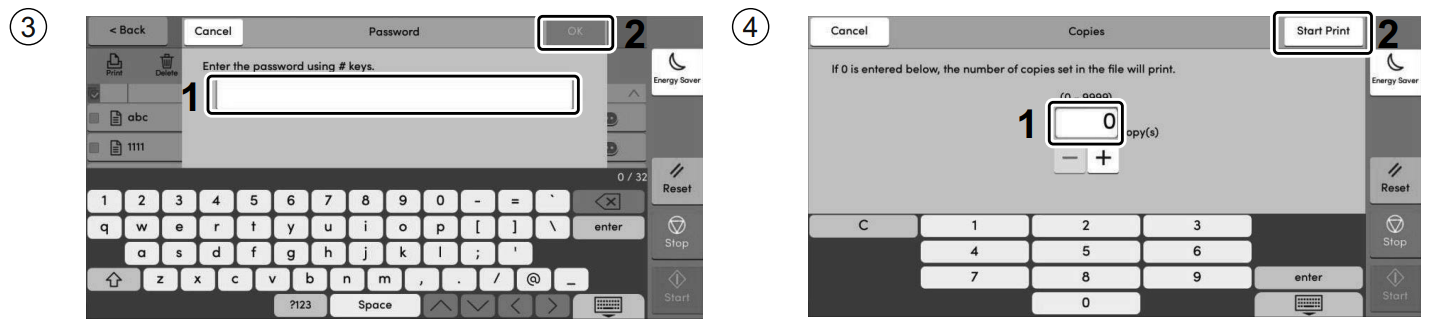
- Step 3 – Enter the Password > [OK] > Specify the Number of Copies > [Start Print]
- Reminder: Please Take Back Your Octopus Card
- Insert Octopus Card to Start
- Step 1 – Click Home Button > [Scan]
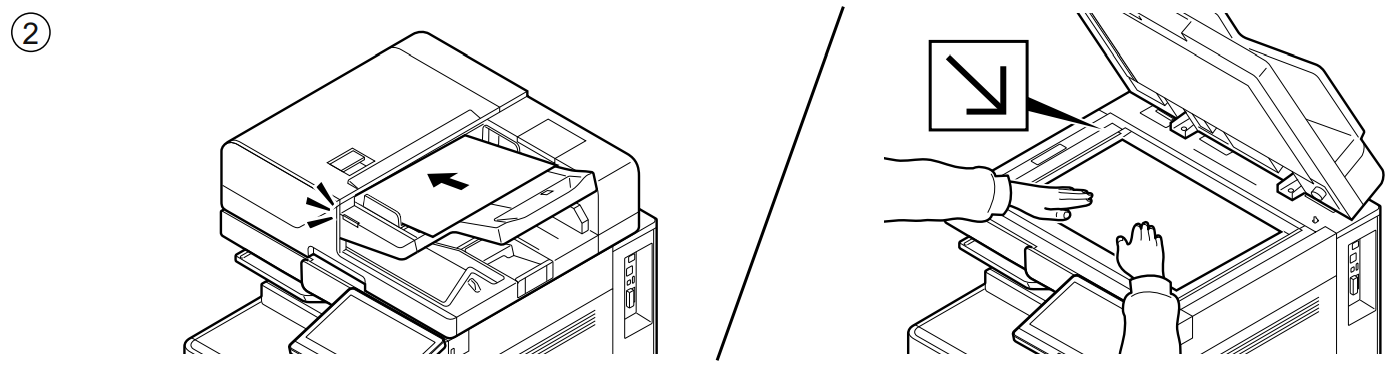
- Step 2 – Place the Originals
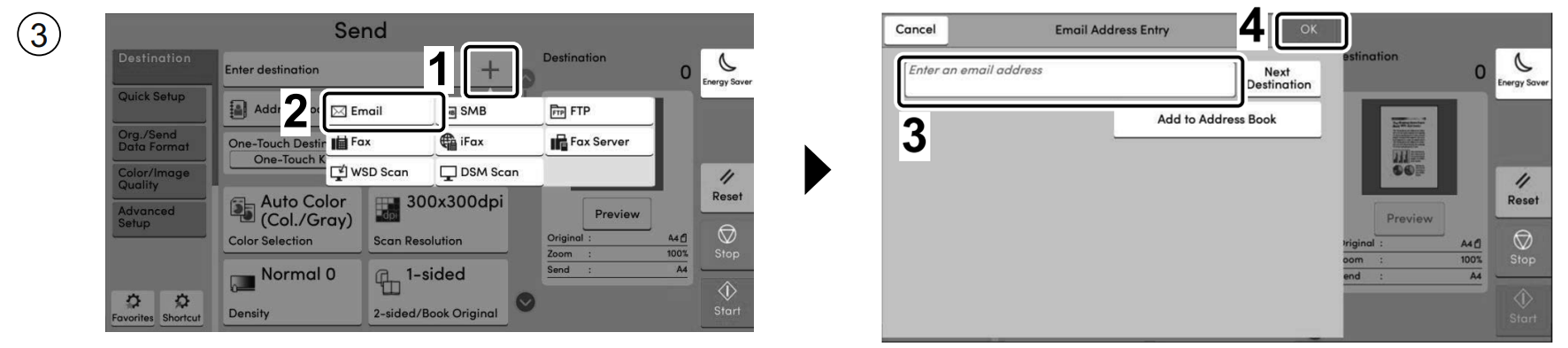
- Step 3 – Select [E-mail Addr Entry] > Enter the Destination E-mail Address > Press [OK]
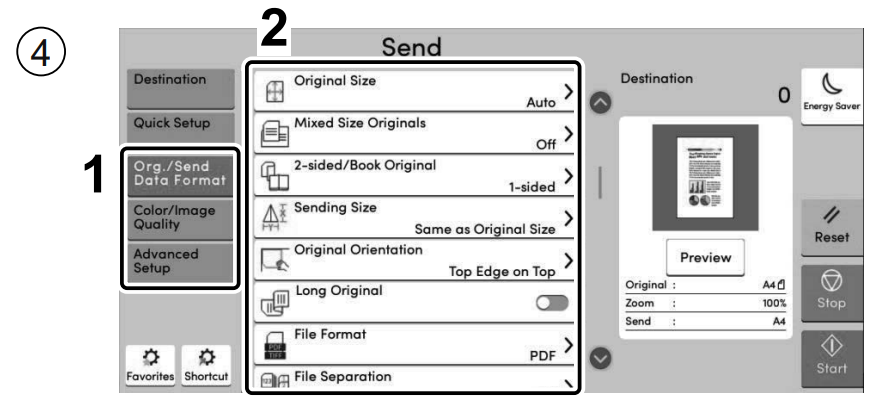
- Step 4 – Select the Functions
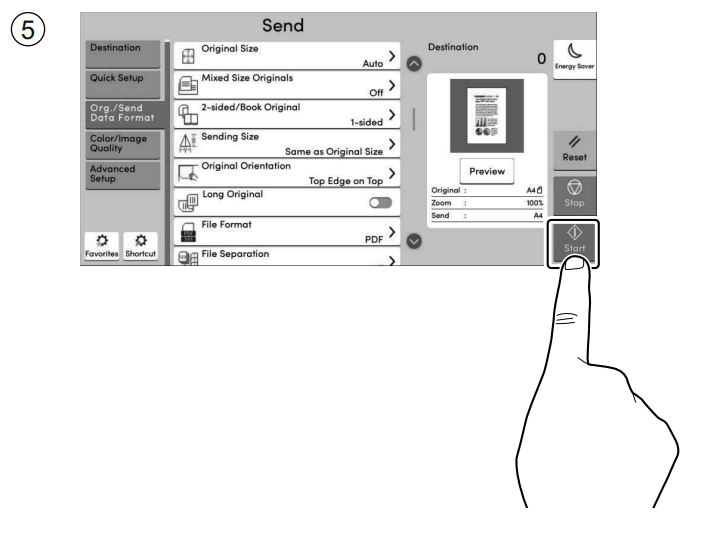
- Step 5 – Press the [Start] Key
- Reminder: Please Take Back Your Octopus Card
Multi-Function Printer User Guide
- General Information
- Copying Guide (Kyocera)
- Printing Guide (Kyocera)
- Scanning Guide (Kyocera)
- Fujifilm Copying & Printing Guide
A. Printing Cost
| A4 | A3 | |
| Black & White | $0.3 | $0.6 |
| Colour | $1.8 | $3.6 |
| Scanning | Free of charge | |
B. Mobile Printing in the Library
To use mobile printing in the Library, please refer to the appropriate user guide below according to the type of photocopier:
C. How to Print to Kyocera MFP in Library
D. Photocopier Location
| IP Address | Location |
|---|---|
| 2/F IP: 192.168.8.113 |
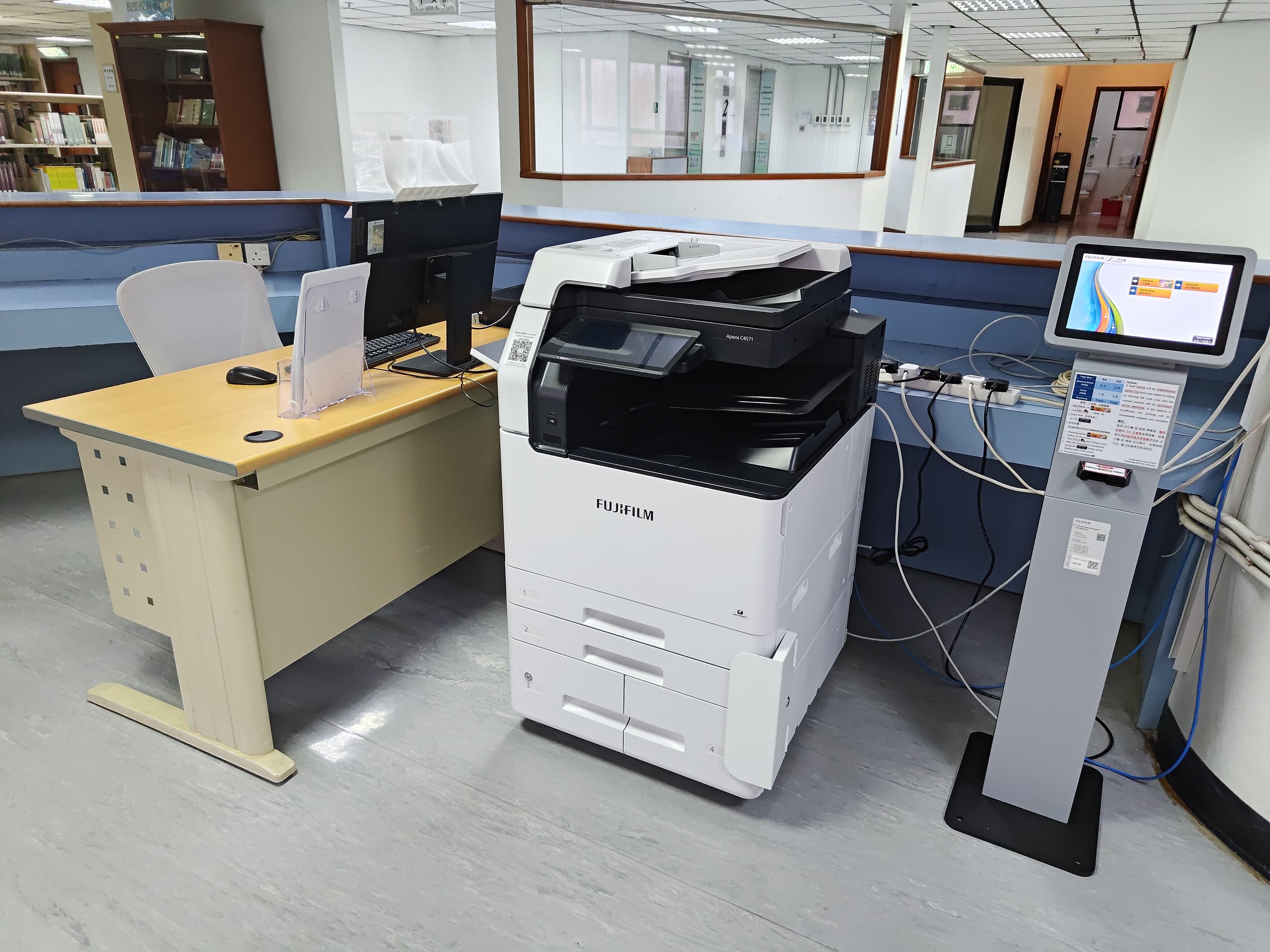
Fujifilm Photocopier |
| 3/F IP: 192.168.8.46 |
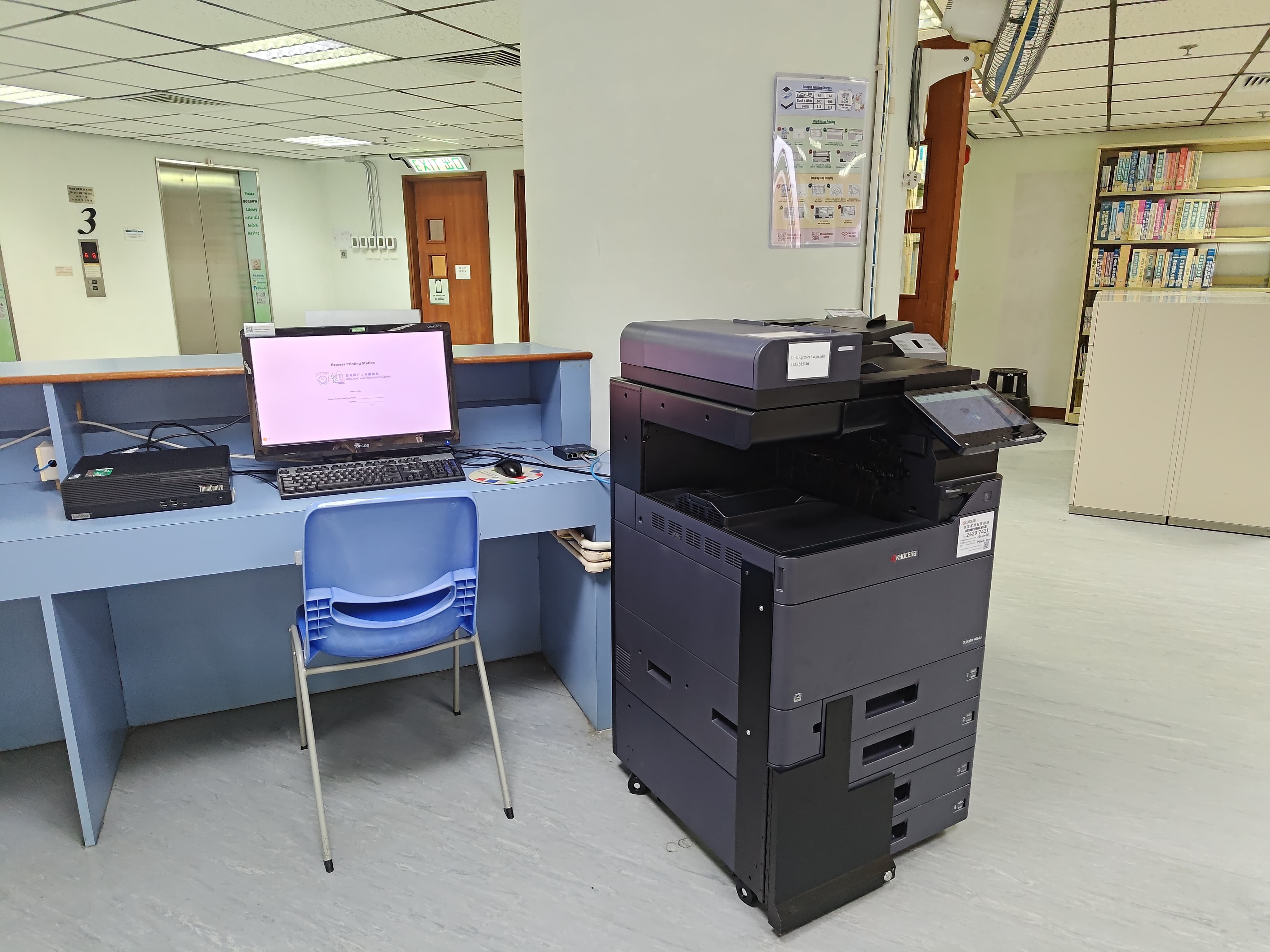
Kyocera Photocopier |
| 4/F IP: 192.168.8.45 |
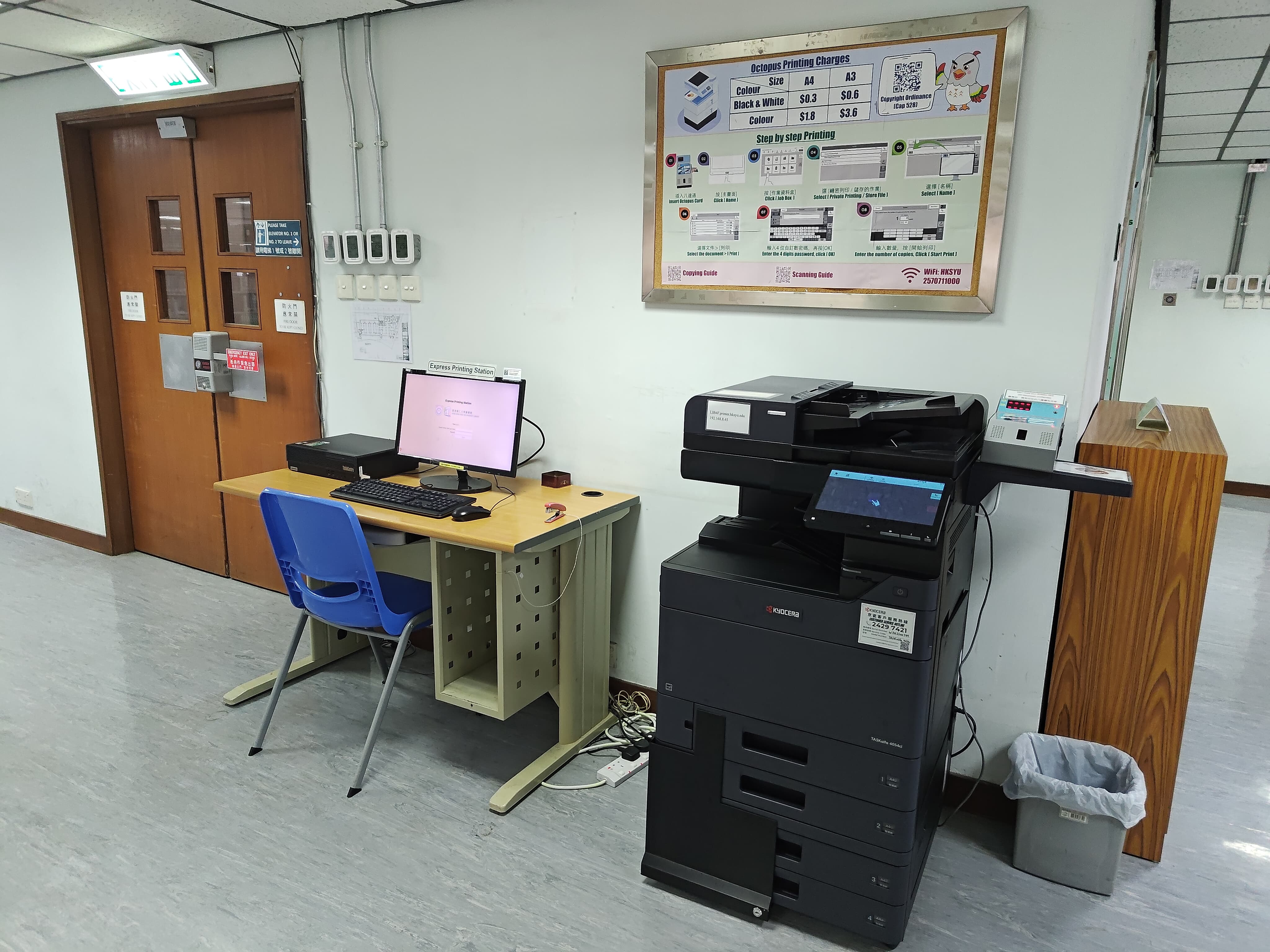
Kyocera Photocopier |
| 5/F IP: 192.168.8.48 |
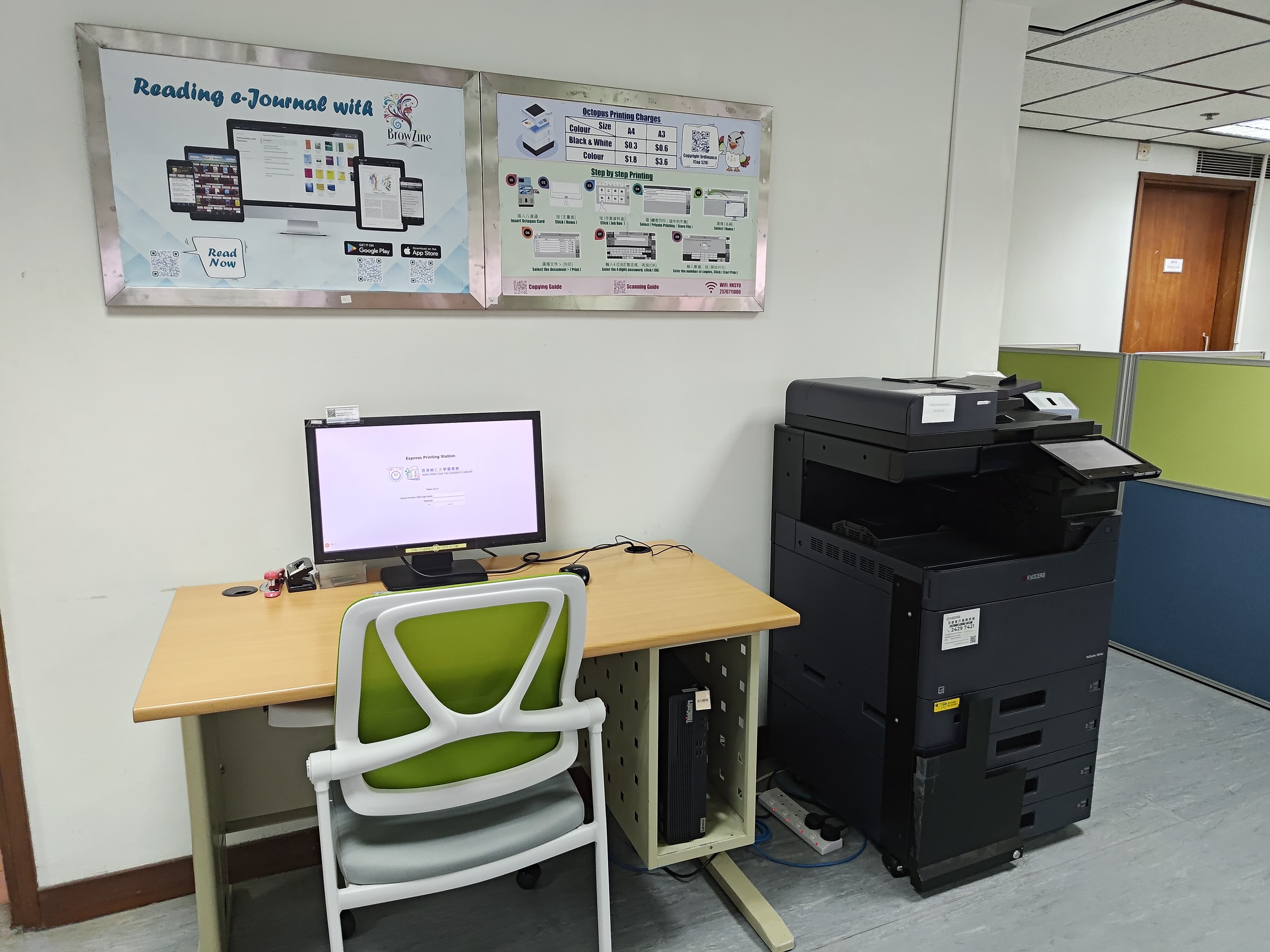
Kyocera Photocopier |
| 6/F IP: 192.168.8.49 |
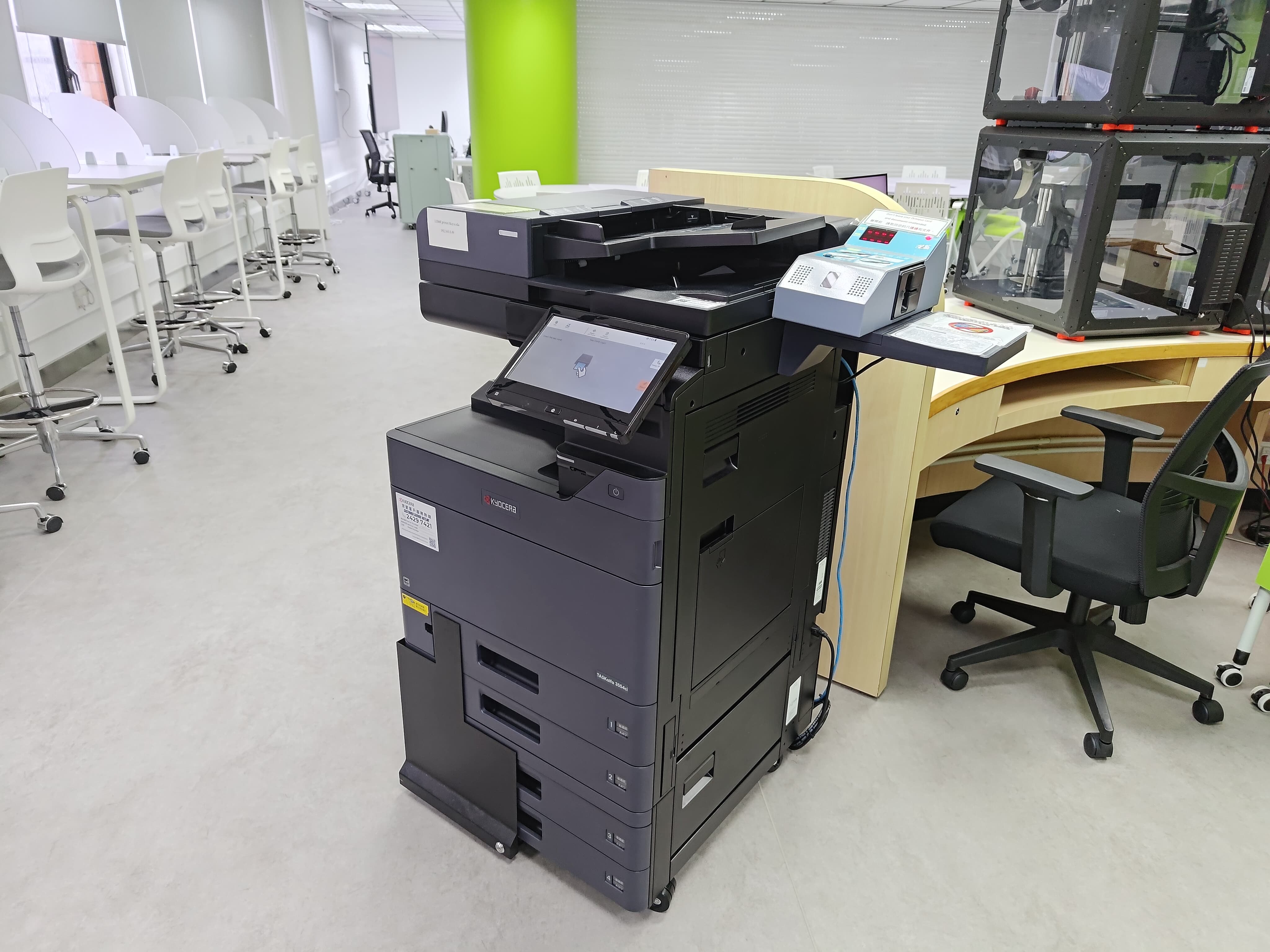
Kyocera Photocopier |
Insert Octopus Card to Start
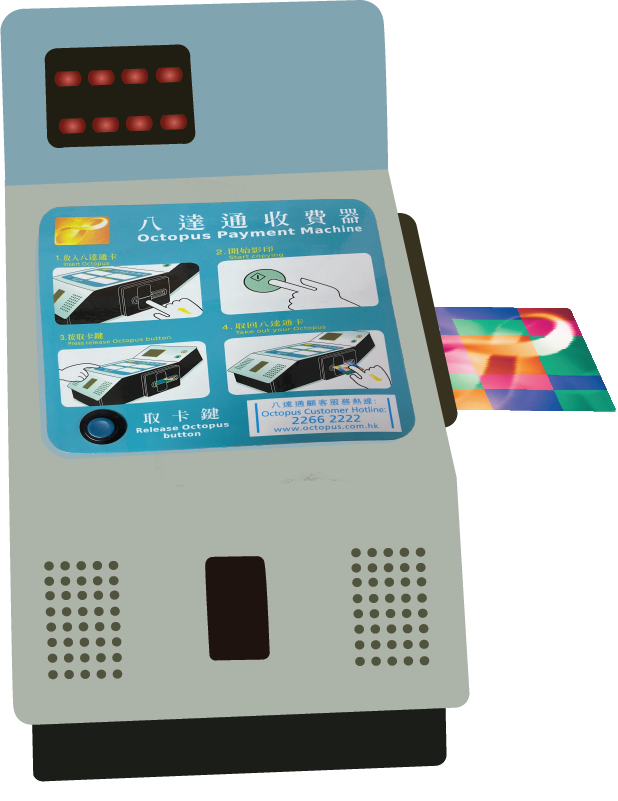
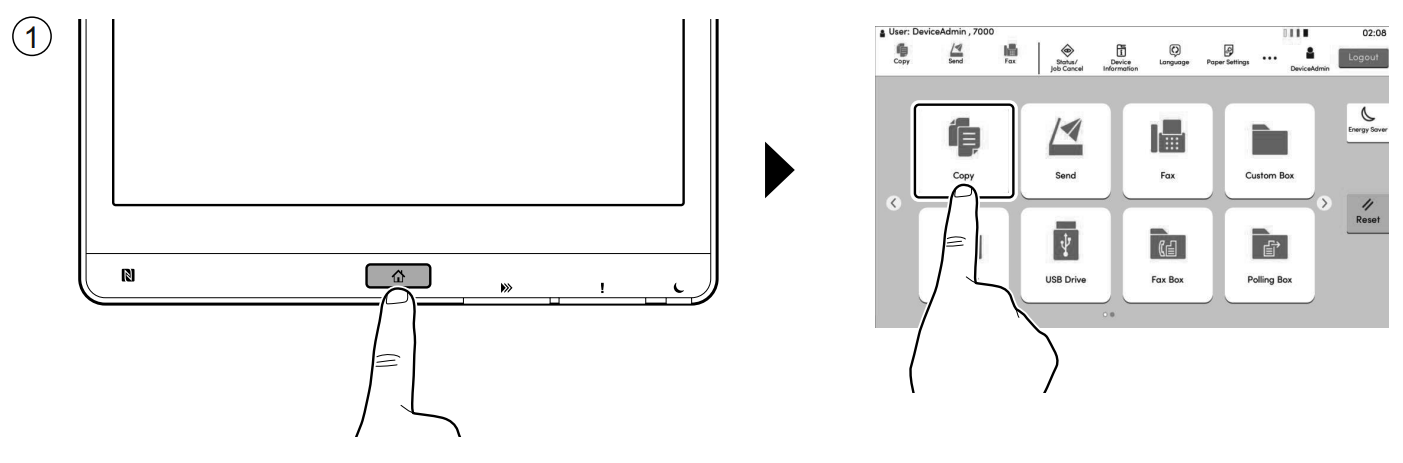
Step 1 – Click Home Button > [Copy]
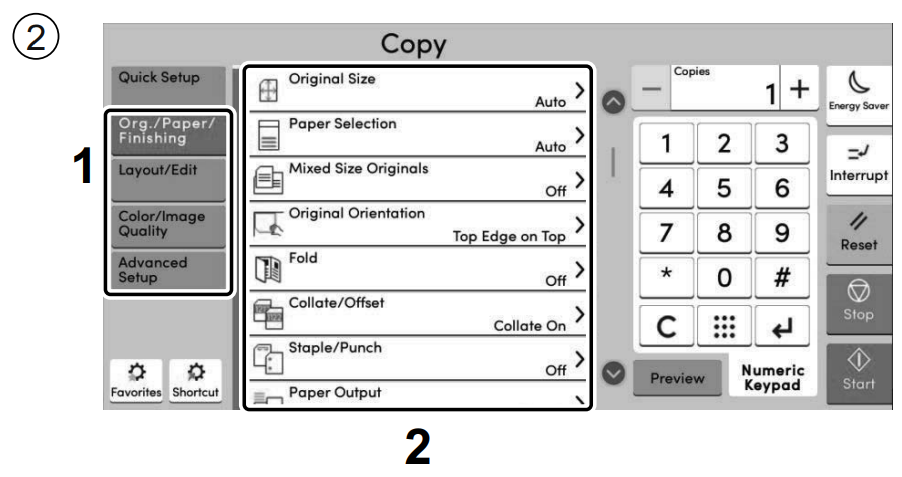
Step 2 – Select the Functions
Step 3 – Enter the Copy Quantity
Step 4 – Press the [Start] Key
Reminder: Please Take Back Your Octopus Card
Insert Octopus Card to Start
Step 1 – Click Home Button > [Job Box]
Step 2 – Select [Private Print / Stored Job] > Select the Document to Print > [Print]
Step 3 – Enter the Password > [OK] > Specify the Number of Copies > [Start Print]
Reminder: Please Take Back Your Octopus Card
Insert Octopus Card to Start
Step 1 – Click Home Button > [Scan]
Step 2 – Place the Originals
Step 3 – Select [E-mail Addr Entry] > Enter the Destination E-mail Address > Press [OK]
Step 4 – Select the Functions
Step 5 – Press the [Start] Key
Reminder: Please Take Back Your Octopus Card
Please refer to the following guide for copying and printing using the Fujifilm photocopier.
